Showing posts with label ETL_SSIS. Show all posts

Wednesday, January 9, 2019

How to use the CheckPoints in SSIS to handle Package Failures and re-running of Packages

Handling Package Failures and re-running of Packages using CheckPoints in SSIS
The Check Points is one of the most powerful, and useful feature in SQL Server Integration Services(SSIS). We can use the Checkpoints in SSIS to restart packages from the point of failure, instead of re-running the whole package (all tasks).
A SQL Server Integration Services (SSIS) package can fail for many reasons like data source might be offline, a server might go down, the network might be unavailable and any other problems might arise.
In this case, in general we can simply restart the package after the problem has been resolved and everything is back to normal. However, if your package is loading large datasets(terabytes of data) or performing numerous other operations, a failure can have a significant impact on your schedule and resources.

The One best way to help & protect against such a issues is to implement checkpoints in your SSIS package. The Checkpoints will save a lot of time & resource effort by restarting the packages from the point of failure, instead of re-running the whole package (all tasks).

Now we will discuss in detail about the how to define the CheckPoints in SSIS, using the following Package
Example::
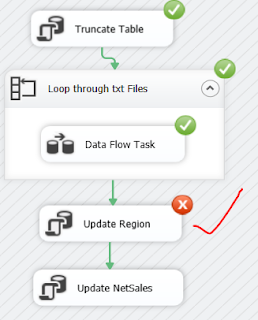
Suppose we have a package as follows, where are performing the below Tasks..
Truncating the Destination Table :
                                                    Truncate Table [dbo].[Tbl_Sample]
Looping through the input files from a Folder :

Variables used in this Package :Data Flow Task to Load Data from each Input to the Destination Table :
                                                           [dbo].[Tbl_Sample]

Next and Execute SQL Task to perform Region Update on the Destination Table :
Update [dbo].[Tbl_Sample] Set Region ='Middle_East' Where Region = 'East'

Finally an Execute SQL Task to perform NetSales Update on the Destination Table : 
Update [dbo].[Tbl_Sample] Set NetSales =5555.75 Where NetSales <= 3000
Now we will make small change(incorrect SQL Statement) in the Execute SQL Task of the 'Update Region' to make the above Package failure, to explain about the CheckPoints..
Update [dbo].[Tbl_Sample] Set Region =='Middle_East' Where Region == 'East'

Now if we run the above Package it will Fail at the Excecute SQL Task "Update Region". But, before running this Package, we need to configure the Checkpoints as discussed below to capture this Failure stage information so that we can re-run from that Task, without re-running the whole Package again.

Configuring Checkpoints in SSIS ::
Now will discuss first about the Configuration of the CheckPoints for this Package using a XML File, where the Package execution details will be stored.

1) Package Properties > CheckPoints :
Set the Package Properties for the CheckPoints section as follows.
CheckPointFileName :
The XML file which which are using as a CheckPoint to store the Package execution status, the success and failure details of the tasks in the Package flow.
We can create an XML CheckPoint File by Save as the Notepad in XML Format.
Once we created an XML File, then it can be updated to CheckPointFileName.

CheckPointUsage: This property has three options:
Never  : Package will not use the Checkpoint.
IfExists: Package will look for the Checkpoint File for the execution Information, and if there is any Information then it will use that information. If no Checkpoint file exists/no information, then it will skip using it. This is the common option in most cases.
Always: Package will always look for the Checkpoint Information File,uses that Information. If it doesn’t have any Checkpoint File/Information then it will throw an error.

SaveCheckPoint: Choose whether you want to Save the CheckPoint or not.
Now the CheckPoints Configuration is ready. 

2) Task(s) Properties > Execution :
Once the CheckPoints Configuration is ready, the next most important thing is to set the Execution property 'FailPackageOnFailure=True', to each Task(Eg : Execute SQL Task, ForEachLoop Container, DataFlow Task..etc), by selecting each Task individually.
For the Containers and Tasks in side them, we also need to set the property 'FailParentOnFailure =True'.
Note:
If you forget to set this Property to any of the Task, the Package will not use the CheckPoint File to save execution information and also it deletes the existing XML File.

3) Finally Save all the Package, and run it to see how CheckPoint File is useful.
Once we run the Package it will fails, as we know there was some thing wrong with Execute SQL Task.

Since we configure the CheckPoints with a XML File, the Package returns the execution details into XML File as shown below.
We open that XML File with Notepad to see the details. This file contains the Information of the Package, the Tasks that completed and the Failed stage.
We don't Try to understand the XML Code here, as the System will take care the Process when we re-run the Package after fixing the error in the Task where the Package failed.
Now stop the Package and then Fix the Error in the 'Execute SQL Task' then re-run the Package. 
Update [dbo].[Tbl_Sample] Set  Region ='Middle_East' Where Region = 'East'
Since we configured the CheckPoint File, in the Next run the Package will start from the Task, where it was failed before, without re-running the all the Tasks from the beginning.

Note :
Once the Package runs successfully without any error, it will delete the existing Checkpoint File. We need to re-configure again if needed.

--------------------------------------------------------------------------------------------------------
Thanks, TAMATAM ; Business Intelligence & Analytics Professional
--------------------------------------------------------------------------------------------------------

How to use the Break Points to Validate the Control Flow Tasks and Data Flow in SSIS

Break Points to Validate the Control Flow Tasks and Data Flow in SSIS
The Breakpoints in SSIS are very useful to validate and understand the Control Flow Tasks and the Data Flow at multiple levels.

We can use the Breakpoints in Control Flow at a specific task on the Pre-Execution, Post-Execution of that task, to validate the outcomes of the previously executed tasks.

For Instance, we can use the Breakpoints at ForEach Loop container(used to loop through the files in a Folder using the Variables) to understand how the variable values are changing on the Pre-Execution, Post-Execution, each Iteration of the Loop.

Now we will discuss in detail about the most commonly used Break Points in SSIS

Example::
Suppose we have a package as follows, where are performing the below Tasks..
Truncating the Destination Table :
                                                 Truncate Table [dbo].[Tbl_Sample]
Looping through the input files from a Folder:

Variables used in this Package :

Data Flow Task to Load Data from each Input to the Destination Table :
                                                 [dbo].[Tbl_Sample]

Next two Execute SQL Tasks to perform Updates on the Destination :
               Update [dbo].[Tbl_Sample] Set  Region ='Middle_East' Where Region = 'East'
               Update [dbo].[Tbl_Sample] Set  NetSales =5555.75 Where NetSales <= 3000

In this example, we will see how to add Breakpoints to the Foreach Loop Container, and the Data Flow task. 
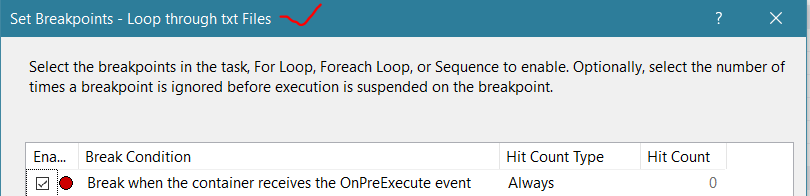
In order to add breakpoints on a Container, right-click on the Foreach Loop container will open the context menu. Please select the Edit Breakpoints.. option from the context menu as we shown below.
Once you select the Edit Breakpoints.. option, a new window called Set Breakpoints will be opened as we shown below.
The following are the list of SSIS Breakpoints, and respective description.
Break Condition Description
Break When the Task or Container receives the OnPreExecute event This event is raised or called when a task is about to execute. It is useful to watch the variables of the task, or a container before it runs.
Break When the Task or Container receives the OnPostExecute event This event is raised or called immediately after the task is completed or, executed. The OnPostExecute event is useful to watch the task or a container variable after the task finishes.
Break When the Task or Container receives the OnError event The OnError event is called when an error is occurred by a task or container
Break When the Task or Container receives the OnWarning event The OnWarning event is called when a task or container throws a warning.
Break When the Task or Container receives the OnInformation event we can use this OnInformation event, when a container or task has to provide any information
Break When the Task or Container receives the OnTaskFailed event This event is called when the task is failed
Break When the Task or Container receives the OnProgress event This event is called to update the task execution progress.
Break When the Task or Container receives the OnQuerycancel event While processing the task, we call this event at any time. This will help we to cancel the execution at any time.
Break When the Task or Container receives the OnVariableValueChanged event The OnVariableValueChanged event is called when the variable value changes. In order to raise this event, we have to set the RaiseChangeEvent of the variable to TRUE.
Break When the Task or Container receives the OnCustomEvent event If we want to raise any task defined events, then we use this OnCustomEvent event.


For now, we are selecting the two Breakpoints, one is OnPreExecute event on ForEach Loop Container, and another is OnPostExecute event on Data flow task.

OnPreExecute Event :
This Breakpoint will temporarily stop the flow when it reaches to the ForEach Loop Container, before it starts executing (but after finishing the previous Truncate Table task).


OnPostExecute Event :
This Breakpoint will stop the flow after finishing the Dataflow Task. Since this task is inside the ForEach Loop Container, after the finish of each iteration the flow will break.

The Breakpoints allow four different options for the Hit Count type, and they are:
Hit Count type Description
Always Execution will be suspended when the breakpoint is hit.
Hit Count equals Execution is suspended when the Hit Count is equal to a number of times breakpoint has occurred.
Hit Count Greater than or Equal to Execution is suspended when the Hit Count is greater than or equal to a number of times breakpoint has occurred.
Hit Count Multiple If you set this option to 4, execution is suspended every fourth time.
Once we setup the Breakpoints on the desired tasks, we can say OK and run the package.
Now we can see the Package execution Flow will stop/break at the Breakpoint.
Now we can check/validate the records in the Destination table before looping through the inputs and loading them to that table.
Select Count(*) As RecordCount From [dbo].[Tbl_Sample]  
RecordCount
0        
Next click Continue to resume the process flow, so that the FileName variable will pick a value from ForEach loop container, then the flow will reach to the Data Flow Task. Now the data flow task will finish its first iteration, then again it stop due to OnPostExecute event Breakpoint on it. 
Now we can check the values of the FileName variable from the Locals window. Also from Call Stack window we can see the Task of the Package, and at which task the Flow was currently had a Break, and the Breakpoints used in the Package are showin in the CallStack > Breakpoints window.

In the Locals >Variables, we can see so many System variables along with the User defined variables. If we wants to Focus(keep an eye to watch) on a specific variables(eg: FileName). We can add a Watch on those variables by selecting the required variables and right-click on them will open the context menu, then select the Add Watch option as we shown below.
Now the selected Variables will be add to Watch as follows, so that is easy to monitor the values change.
Finally we will click Continue at each Break after finishing our validation to complete the flow.


Now we can check final records Count in the Destination table.
Select Count(*) As RecordCount From [dbo].[Tbl_Sample]
RecordCount
16


Removing Break Points :
We can remove each Breakpoint individually by going through the Edit Breakpoints and de-select the Breakpoint that previously added.
Also, we can remove all the Breakpoints at a time from DEBUG Tab>Delete All Breakpoints.

--------------------------------------------------------------------------------------------------------
Thanks, TAMATAM ; Business Intelligence & Analytics Professional
--------------------------------------------------------------------------------------------------------

Thursday, January 25, 2018

How to Perform Incremental Loads to Sync Source Data with Destination using MERGE Command in SSIS

SSIS Task to Perform Incremental Loads to Sync Source Data Table with Target Table using MERGE Command in SSIS
Incremental Load is process of comparing the Target data table against the Source data based on a Id Column or Date Stamp or Time Stamp and updating or loading the data to Target table as per below conditions:If there are any New records in Source data then we have to insert those records in Target data table. For example, on a Daily/Weekly basis we have to insert the Region wise sales data.
For example, updating the Net Sales data which is adjusted.
Incremental Load activities to be perform here :
  • First 6 records already exist in the Target but the ProductName,RegionName and NetSales for records 3 and 5 (Order_Id : 113,115) are modified in Source which only need to Update in Target .
  • The records 7,8 (Order_Id 119,120) in the Source are new which are not exist in the Target which need to Insert in Target .
  • The records 7,8 (Order_Id 117,118) are missing in the latest Source so that those records need to be delete from the Target.
USE [AnalyticsDB]
GO
Select * From [Tbl_Target]
Inserted records ( Order_Ids : 119,120 )
Deleted records ( Order_Ids : 117,118 )
If there are any updated values in Source data then we have to update those records Target data table. 
If there any records exist in Target but not available in the latest Source data, then we have to Delete those records from Target data table.
Scenario:
Suppose we have a Target Table, in which we have to load the data from Source Table
USE [SalesDB]
GO
SELECT [Order_Id]
      ,[ProdName]
      ,[RegionName]
      ,[FiscalQtr]
      ,[NetSales]
  FROM [dbo].[tbl_Source]
GO
The Source Table as follows from which we Load the data to Target Table
USE [AnalyticsDB]
GO
SELECT [Order_Id]
      ,[ProdName]
      ,[RegionName]
      ,[FiscalQtr]
      ,[NetSales]
  FROM [dbo].[tbl_Target]
GO

Now if you observes the data in the Source against the Destination Table, the following
Now we will design a SSIS Package to perform the above Incremental Load activities.

Phase-1: Create the Temp Table initially before Building a Package:
First we need to Create the two Temp Staging Tables one Time in the Target Database, which helps us build the Package initially. Later the Package will take care of Creating those Tables during Run Time, in future.
The Temp Staging Table for Loading the data from Source, then performing the Incremental Load Activities in Target ( Insert New,Update Modified and Delete Not match with Source).
IF OBJECT_ID('[tempdb]..[##tempSourceTable]', 'U') IS NOT NULL
 Begin
    Truncate Table [dbo].[##tempSourceTable]
  --Print ('Temp Table already exists and it has been Truncated')
 End
Else
Begin
CREATE TABLE[dbo].[##tempSourceTable](
[Order_Id] [Int] NOT NULL,
[ProdName] [nvarchar](255) NULL,
[RegionName] [nvarchar](255) NULL,
[FiscalQtr] [nvarchar](255) NULL,
[NetSales] [float] NULL
 ON [PRIMARY]
 -- Print ('A Temp Table has been Created')
End
GO

Phase-2: Create the SQL Server Connections to Source, Temp and Target Databases:

Notes:
Please set the Property RetainSameConnection=True for the TAMATAM-PC.tempdb under connection properties.
Also set the Property DelayValidation=True in Control Flow Properties and in the Data Flow Properties.

Phase-3: Create the Temp Staging Table for Source with Execute SQL Task:
We have to Create a Temp Table which we will use as Staging Table, in which we store the data from the Source. From this Staging Table we Insert, update and Delete the records in the Target Table. 


We use the below Query , which will Truncates if already exists Otherwise it re-creates the Temp Table on every run.
IF OBJECT_ID('[tempdb]..[##tempSourceTable]', 'U') IS NOT NULL
 Begin
    Truncate Table [dbo].[##tempSourceTable]
  --Print ('Temp Table already exists and it has been Truncated')
 End
Else
Begin
CREATE TABLE[dbo].[##tempSourceTable](
[Order_Id] [Int] NOT NULL,
[ProdName] [nvarchar](255) NULL,
[RegionName] [nvarchar](255) NULL,
[FiscalQtr] [nvarchar](255) NULL,
[NetSales] [float] NULL
 ON [PRIMARY]
 -- Print ('A Temp Table has been Created')
End
GO
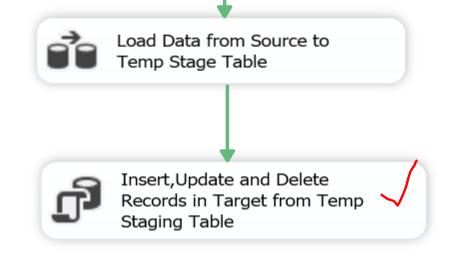
Next Connect the Execute SQL Task to Data Flow and Design the Data Flow Task for loading data from  Source to a Temp Staging Table.

Phase-4: Designing the Data Flow Task for for loading data from Source to a Temp Staging Table :
Source DB :
Temp Stage Table :


Now the Data Flow Task is Ready. Next Connect the Data Flow Task to Execute SQL Task to Perform the Incremental Load Activities.

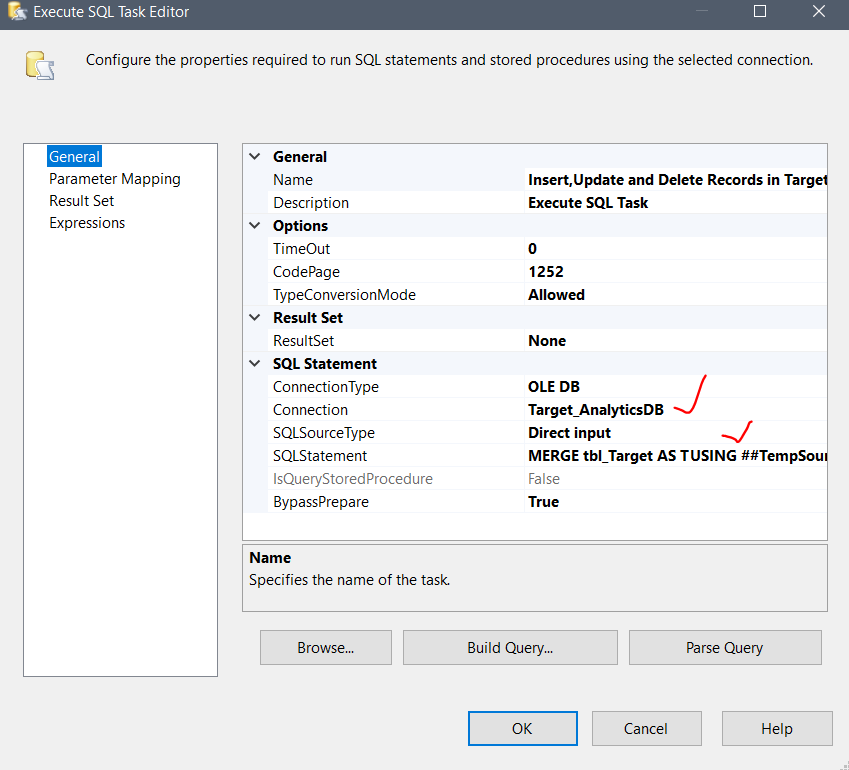
Phase-5: Connect the Data Flow Task to Execute SQL Task to Perform the Incremental Load Activities :

We use the below Query (MERGE Command), in the Execute SQL Task which performs the Incremental Load Activities in Target ( Insert New,Update Modified and Delete Not match with Source)
MERGE tbl_Target AS T
USING ##TempSourceTable AS S
ON (T.Order_Id=S.Order_Id)
WHEN NOT MATCHED BY TARGET
THEN INSERT(Order_Id,ProdName,RegionName,FiscalQtr,NetSales)
VALUES(S.Order_Id,S.ProdName,S.RegionName,S.FiscalQtr,S.NetSales)
WHEN MATCHED AND 
(
ISNULL(T.ProdName,'abc')<>ISNULL(S.ProdName,'abc') OR
ISNULL(T.RegionName,'abc')<>ISNULL(S.RegionName,'abc') OR 
T.FiscalQtr<>S.FiscalQtr OR T.NetSales<>S.NetSales
)
THEN UPDATE SET T.ProdName=S.ProdName, 
T.RegionName=S.RegionName,
T.FiscalQtr=S.FiscalQtr,T.NetSales=S.NetSales
WHEN NOT MATCHED BY SOURCE THEN DELETE;

Notes :
Some times we may get the below Error when we performing comparison operations like below
ISNULL(T.ProdName,'abc')<>ISNULL(S.ProdName,'abc') OR
T.FiscalQtr<>S.FiscalQtr OR T.NetSales<>S.NetSales 
due to different Collations having by SourceDB and TargetDB. 


Msg 468, Level 16, State 9, Line 12
Cannot resolve the collation conflict between "Latin1_General_CI_AI" and "SQL_Latin1_General_CP1_CI_AS" in the not equal to operation.
We need to Make Sure that the 
To avoid this Error we need to Ensure both Source and Target DB should have the same Collation.

Final Phase: Now Execute the Package to perform the Incremental Load Activities :

Final Output in Target Table ( with Inserted New , Updated Modified and Deleted non Match with Source) :

Modified records ( Order_Ids : 113,115,116 )
Inserted records ( Order_Ids : 119,120 )
Deleted records ( Order_Ids : 117,118 )

--------------------------------------------------------------------------------------------------------
Thanks, TAMATAM ; Business Intelligence & Analytics Professional
--------------------------------------------------------------------------------------------------------

Featured Post from this Blog

How to compare Current Snapshot Data with Previous Snapshot in Power BI

How to Dynamically compare two Snapshots Data in Power BI Scenario: Suppose we have a sample Sales data, which is stored with Monthly Snapsh...

Popular Posts from this Blog