Wednesday, November 15, 2017

How to use Fast Parse Property in SSIS Flat File Source

What is Fast Parse Property in SSIS Flat File Source
In General, when you loading the data from Flat File to a Destination, the Source data will Parse, which means it validate the source Columns Datatype against the Destination Datatype, to ensure right data flowing into the destination.

The validation will do for the Date and Numeric data columns. This validation may consumes the time, when we are loading large datasets.
If you are sure that Input data source is trusted one having the valid data, then you skip this validation by enabling the FastParse=True, which makes you process execution faster.

Scenario:
Suppose we have a Task where we loading the data from Flat File to SQL Destination as follows :
Here I did not set any FastParse Properties ( by Default , FastParse=False )

Now the Execution time when FastParse=False :
Finished, 1:54:43 PM, Elapsed time: 00:00:00.217

Now I will enable to FastParse Property to the Numeric and Date Columns of the Flat File Source as follows :
1. Right Click on Flat File Source  then Go to Advanced Editor :
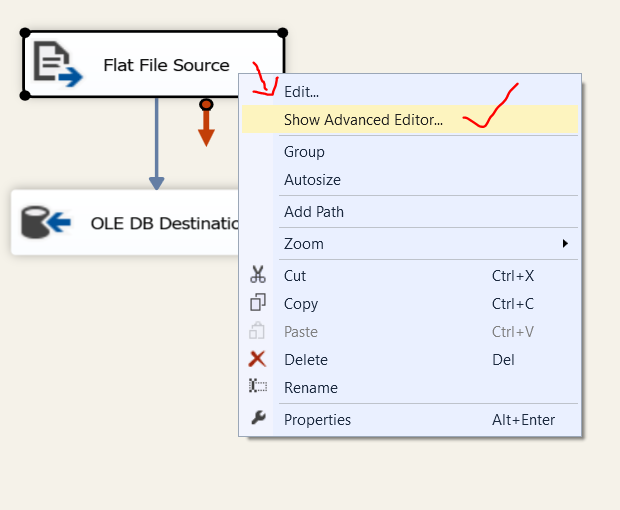
2. Next in Advanced Editor > Input and Output Properties set the Properties as follows:
Go to Flat File Source Output > Output Columns
Next select each Numeric and Date columns and set the "FastParse=True" under Custom Properties.


Now the Execution time when FastParse=True :
Finished, 2:11:08 PM, Elapsed time: 00:00:00.172

Note:
When we are loading Large datasets then we see the more Variance in the Execution Time

--------------------------------------------------------------------------------------------------------
Thanks, TAMATAM ; Business Intelligence & Analytics Professional
--------------------------------------------------------------------------------------------------------

SSIS Package to read Blank data as Null values from Flat File Source

SSIS Package to convert Blank data to Null values from comma delimited Flat File Source
Scenario :
Suppose we have the Flat File source where we have few blank values as follows
In row 1 MiddleName is blank
In row 2 Last Name and Basic_Sal are blanks
In row 3 First Name and LastName are blanks


Now we read the Flat file with Data Flow task 

Now  if we view the Flat File source data in Data Viewer, it looks as follows
Here it showing (blanks) for the String columns and "0" for the numeric column.

Now our objective is to read these blanks as NULL, which can be done as follows :

1. Right click on FlatFile Source and go to "Edit" and select the option "Retain null values from source as null values in the data flow" as shown below :

2. Next Right click on FlatFile Source and go to "Show Advance Editor" >"Component
Properties" and set the "Retain Nulls" option to "True" as follows :


3. Finally view the data now in Data Viewer :
The Blank values are reading as Null.
--------------------------------------------------------------------------------------------------------
Thanks, TAMATAM ; Business Intelligence & Analytics Professional 
--------------------------------------------------------------------------------------------------------

SSIS Package to Split a Column of a Flat File Source into Multiple Columns and Load to SQL Server Destination

How to Split a Column into Multiple Columns from Flat File and Load to SQL Server
Scenario:
Suppose we have the source data in Flat File as follows : 
EmpId  EmpName                          Dept    BasicSal
123       Michael,Edward;Smith        BI&A    750000
124       John,Francis;Kennedy        F&A      55000
125       Elizabeth,Rose;Water         R&D     95000


here, in the above data EmpName consists the FirstName , LastName ; MiddleName, which we need to split before loading to the Destination Table :
Now we can design the SSIS Package to Split the column EmpName to 3 columns as follows:
Phase -I : Create Connections for Source Flat file and Destination Table :


EmpSrc_FlatFile - This is the connection to the Flat File Source
EmpDB - This is the connection to the Destination Table

Phase -II : Design the Data Flow:
1. Add the Data Flow task to Control Flow 


2. Next add the Flat Source to DataFlow and set connection properties

Here we simply add the FlatFile source and select the connection. Nothing special in the properties setup.

3. Next add the Derived Column Transformation to Split the EmpName Column


In the derived Column Transformation, we can derive FirstName, LastName and MiddleName from EmpName as follows..

here,
FirstName :

SUBSTRING([EmpName],1,FINDSTRING( [EmpName],",",1)-1)
LastName :
SUBSTRING([EmpName],FINDSTRING( [EmpName],",",1)+1,FINDSTRING( [EmpName],";",1)-FINDSTRING( [EmpName],",",1)-1)
MiddleName:
SUBSTRING([EmpName],FINDSTRING( [EmpName],";",1)+1,LEN( [EmpName])-FINDSTRING( [EmpName],",",1)-1)

4. Next do the TypeConversion with Data Conversion Transformation


5. Finally map the required Source columns to OLE DB Destination Table


------------------------------------------------------------------------------------------------
Output :

--------------------------------------------------------------------------------------------------------
Thanks, TAMATAM ; Business Intelligence & Analytics Professional 
--------------------------------------------------------------------------------------------------------

Featured Post from this Blog

How to compare Current Snapshot Data with Previous Snapshot in Power BI

How to Dynamically compare two Snapshots Data in Power BI Scenario: Suppose we have a sample Sales data, which is stored with Monthly Snapsh...

Popular Posts from this Blog