Showing posts with label Python_File_Process. Show all posts

Sunday, January 30, 2022

How to insert the Data from a Text file to SQL Server table using sqlalchemy package in Python

How to insert the Dataframe from a Text file to SQL Server table using sqlalchemy and pandas packages in Python
Scenario:
Lets suppose we have a tab delimited Text file, from which we need to create a Dataframe and then we need to insert the records from this Dataframe to a SQL Server table.

In Python, we can create the Dataframes from the files using the 'pandas' package, and we can insert the data from the Dataframe to SQL Server using the 'sqlalchemy' package.

Input Data :
The sample input file(tab delimited text file) having the 20 records, with columns as "Order_Id", "Order_Date", "Prod_Id", "Prod_Name", "Units_Sold"

Please note that, the Order_Date column is a date column having some nulls.

Now we will discuss about the how to create a Dataframe, analyze and cleanup the data, and then finally loading the data to SQL Server table.
# ------------------------------------------------------------------------------------------------------------------------ #
# Packages used in the following:
import os
import sys
import csv
import pandas as pd
import sqlalchemy as sql_alch
from sqlalchemy import create_engine, text, inspect

print("Python Version: ", sys.version)

# ------------------------------------------------------------------------------------------------------------------------ #
'''
# Quick Notes about related Packages:
# import os : 
The OS module in python provides functions for interacting with the operating system. 
It comes under Python’s standard utility modules. 
This module provides a portable way of using operating system dependent functionality.

# import sys: 
The Sys is a built-in Python module that contains parameters specific to the system. 
It contains variables(eg: sys.path) and methods that interact with the interpreter and are also governed by it. It contains a list of directories that the interpreter will search in for the required module.

# import pandas: 
The Pandas package is one of the powerful open source libraries in the Python programming language.
It will be used for data analysis and data manipulation.

# import sqlalchemy: 
The SQLAlchemy is the Python SQL toolkit and Object Relational Mapper which used to access the databases using SQL.

# import pyodbc:
The pyodbc is an open source Python module that makes accessing ODBC databases simple.

'''
# ------------------------------------------------------------------------------------------------------------------------ #
# Defining input Folder and File path:
folder_path = 'C:\\Users\\write\\PycharmProjects\\pythonProject\\PyLab1\\File_Operations\\Input\\'
txtFile_name = "tdl_Products_Sample.txt"
txtFile = folder_path + txtFile_name

# Current working Excel File name
print('The Text File name:\n', os.path.basename(txtFile))
# Current working Excel File directory
print('The Text File Directory name:\n', os.path.dirname(txtFile))
# Current working Excel File full path
print('The full path of the Text File:\n', os.path.abspath(txtFile))  
# ------------------------------------------------------------------------------------------------------------------------ #

# Creating the Dataframe from a Text file(tab delimited):
data_obj = pd.read_csv(txtFile, sep='\t')
df1 = pd.DataFrame(data_obj)

# Analyze the input data from the Dataframe:
# Print the First 5 rows from a Dataframe
print('The First 5 rows from the Dataframe:\n', df1.head(5))

# Result:
The First 5 rows from the Dataframe:
     Order_Id  Order_Date  Prod_Id     Prod_Name  Units_Sold
0  123456812  2014-01-05     1235       DeskTop          32
1  123456822  2014-01-14     1238  Switch Board          36
2  123456806  2014-01-17     1235       DeskTop          11
3  123456816  2014-01-24     1234        Router          27
4  123456813  2014-02-03     1235       DeskTop          20 

# Print the Bottom 5 rows from a Dataframe
print('The Bottom 5 rows from the Dataframe:\n', df1.tail(5))

# Result:
The Bottom 5 rows from the Dataframe:
      Order_Id  Order_Date  Prod_Id      Prod_Name  Units_Sold
15  123456823  2014-04-26     1235        DeskTop          32
16  123456804  2014-05-04     1237  Laser Printer          20
17  123456810  2014-05-12     1237  Laser Printer          15
18  123456826         NaN     1234         Router          37
19  123456820  2014-05-26     1235        DeskTop          42

# Print the First 5 rows from a Column of Dataframe
print('The First 5 rows from Order_Date Column:\n', df1['Order_Date'].iloc[:5])

# Result:
The First 5 rows from Order_Date Column:
 0    2014-01-05
1    2014-01-14
2    2014-01-17
3    2014-01-24
4    2014-02-03
Name: Order_Date, dtype: object

# Creating Subset of a Dataframe with specific columns of existing Dataframe
req_cols = ['Order_Id', 'Prod_Name']
df2 = df1[req_cols]
print('The Subset of the Dataframe:\n', df2.head())

# Result:
The Subset of the Dataframe:
     Order_Id     Prod_Name
0  123456812       DeskTop
1  123456822  Switch Board
2  123456806       DeskTop
3  123456816        Router
4  123456813       DeskTop

# Print the original Data type of each Column of Dataframe
print('The Datatype of each column of Dataframe before update:\n', df1.dtypes)

# Result:
The Datatype of each column of Dataframe before update:
 Order_Id       int64
Order_Date    object
Prod_Id        int64
Prod_Name     object
Units_Sold     int64
dtype: object

# Cleansing the input data in the Dataframe:
From the above data analysis, we understand that the columns Order_Date , Prod_Name are having the datatype as 'object' which does not understand by SQL while inserting.

Now we need to update(cleansing) the data type of these columns to make sense to SQL.
In the following, i am updating the 'Order_Date' as string to avoid the date formatting issues, and then updating the Prod_Name also as a string.

# Replacing nulls(NaN) values from Order_Date with '9999-01-01' value
df1['Order_Date'].fillna("9999-01-01", inplace=True)

# Converting Column datatypes 
# df1['Order_Date'] = pd.to_datetime(df1['Order_Date'],format='%Y-%m-%d')
df1['Order_Date'] = df1['Order_Date'].convert_dtypes(convert_string=True)
df1['Prod_Name'] = df1['Prod_Name'].convert_dtypes(convert_string=True)

# Print the Data type of each Column of Dataframe after cleanup
print('The datatype of each column of Dataframe after update:\n', df1.dtypes)

# Result:
The datatype of each column of Dataframe after update:
 Order_Id       int64
Order_Date    string
Prod_Id        int64
Prod_Name     string
Units_Sold     int64
dtype: object

# Print the details of the Dataframe
print('The information of the Dataframe:')
df1.info()

# Result:
The information of the Dataframe:
<class 'pandas.core.frame.DataFrame'>
RangeIndex: 20 entries, 0 to 19
Data columns (total 5 columns):
 #   Column      Non-Null Count  Dtype 
---  ------      --------------  ----- 
 0   Order_Id    20 non-null     int64 
 1   Order_Date  20 non-null     string
 2   Prod_Id     20 non-null     int64 
 3   Prod_Name   20 non-null     string
 4   Units_Sold  20 non-null     int64 
dtypes: int64(3), string(2)
memory usage: 928.0 bytes
# ------------------------------------------------------------------------------------------------------------------------ #

# Define Connection to SQL Server:
con_params = r'DRIVER={ODBC Driver 17 for SQL Server};SERVER=TPREDDY-PC;DATABASE=db_Analytics;Trusted_Connection=yes'

conn_str = 'mssql+pyodbc:///?odbc_connect={}'.format(con_params)

sql_engine = create_engine(conn_str, fast_executemany=True)
sql_con = sql_engine.connect()

# Defining the table structure:
tbl_create = text("""CREATE TABLE [dbo].[tbl_Sample_Products](
                            [Order_Id] [float] NOT NULL PRIMARY KEY,
                            [Order_Date] [datetime],
                            [Prod_Id] [int] NULL,
                            [Prod_Name] [varchar](255) NULL,
                            [Units_Sold] [int] NULL
                            ) ON [PRIMARY]
                    """)

# Checking the Table existence and creating:
if inspect(sql_con).has_table("tbl_Sample_Products", schema="dbo"):
    pass
else:
    sql_con.execute(tbl_create)

# Insert DataFrame to Table:
df1.to_sql(name='tbl_Sample_Products', con=sql_con, schema="dbo", if_exists='append', index=False)

# Closing the SQL Connections:
sql_con.close()
sql_engine.dispose()

# Result:


Notes:
In the first run, it will create a table if it does not exists already in the database.
Please note that the above query will insert the data record by record.
If you re-run the same code again, it will append data to existing table, if there is no primary key violation.

#--------------------------------------------------------------Thanks--------------------------------------------------------------#

How to insert the Data from a Text file to SQL Server table using pyodbc package in Python

How to insert the Dataframe from a Text file to SQL Server table using pyodbc and pandas packages in Python
Scenario:
Lets suppose we have a tab delimited Text file, from which we need to create a Dataframe and then we need to insert the records from this Dataframe to a SQL Server table.

In Python, we can create the Dataframes from the files using the 'pandas' package, and we can insert the data from the Dataframe to SQL Server using the 'pyodbc' package.

Input Data :
The sample input file(tab delimited text file) having the 20 records, with columns as "Order_Id", "Order_Date", "Prod_Id", "Prod_Name", "Units_Sold"

Please note that, the Order_Date column is a date column having some nulls.

Now we will discuss about the how to create a Dataframe, analyze and cleanup the data, and then finally loading the data to SQL Server table.
# ------------------------------------------------------------------------------------------------------------------------ #
# Packages used in the following:
import os
import sys
import csv
import pandas as pd
import pyodbc

print("Python Version: ", sys.version)

# ------------------------------------------------------------------------------------------------------------------------ #
'''
# Quick Notes about related Packages:
# import os : 
The OS module in python provides functions for interacting with the operating system. 
It comes under Python’s standard utility modules. 
This module provides a portable way of using operating system dependent functionality.

# import sys: 
The Sys is a built-in Python module that contains parameters specific to the system. 
It contains variables(eg: sys.path) and methods that interact with the interpreter and are also governed by it. It contains a list of directories that the interpreter will search in for the required module.

# import pandas: 
The Pandas package is one of the powerful open source libraries in the Python programming language.
It will be used for data analysis and data manipulation.

# import sqlalchemy: 
The SQLAlchemy is the Python SQL toolkit and Object Relational Mapper which used to access the databases using SQL.

# import pyodbc:
The pyodbc is an open source Python module that makes accessing ODBC databases simple.

'''
# ------------------------------------------------------------------------------------------------------------------------ #
# Defining input Folder and File path:
folder_path = 'C:\\Users\\write\\PycharmProjects\\pythonProject\\PyLab1\\File_Operations\\Input\\'
txtFile_name = "tdl_Products_Sample.txt"
txtFile = folder_path + txtFile_name

# Current working Excel File name
print('The Text File name:\n', os.path.basename(txtFile))
# Current working Excel File directory
print('The Text File Directory name:\n', os.path.dirname(txtFile))
# Current working Excel File full path
print('The full path of the Text File:\n', os.path.abspath(txtFile))  
# ------------------------------------------------------------------------------------------------------------------------ #

# Creating the Dataframe from a Text file(tab delimited):
data_obj = pd.read_csv(txtFile, sep='\t')
df1 = pd.DataFrame(data_obj)

# Analyze the input data from the Dataframe:
# Print the First 5 rows from a Dataframe
print('The First 5 rows from the Dataframe:\n', df1.head(5))

# Result:
The First 5 rows from the Dataframe:
     Order_Id  Order_Date  Prod_Id     Prod_Name  Units_Sold
0  123456812  2014-01-05     1235       DeskTop          32
1  123456822  2014-01-14     1238  Switch Board          36
2  123456806  2014-01-17     1235       DeskTop          11
3  123456816  2014-01-24     1234        Router          27
4  123456813  2014-02-03     1235       DeskTop          20 

# Print the Bottom 5 rows from a Dataframe
print('The Bottom 5 rows from the Dataframe:\n', df1.tail(5))

# Result:
The Bottom 5 rows from the Dataframe:
      Order_Id  Order_Date  Prod_Id      Prod_Name  Units_Sold
15  123456823  2014-04-26     1235        DeskTop          32
16  123456804  2014-05-04     1237  Laser Printer          20
17  123456810  2014-05-12     1237  Laser Printer          15
18  123456826         NaN     1234         Router          37
19  123456820  2014-05-26     1235        DeskTop          42

# Print the First 5 rows from a Column of Dataframe
print('The First 5 rows from Order_Date Column:\n', df1['Order_Date'].iloc[:5])

# Result:
The First 5 rows from Order_Date Column:
 0    2014-01-05
1    2014-01-14
2    2014-01-17
3    2014-01-24
4    2014-02-03
Name: Order_Date, dtype: object

# Creating Subset of a Dataframe with specific columns of existing Dataframe
req_cols = ['Order_Id', 'Prod_Name']
df2 = df1[req_cols]
print('The Subset of the Dataframe:\n', df2.head())

# Result:
The Subset of the Dataframe:
     Order_Id     Prod_Name
0  123456812       DeskTop
1  123456822  Switch Board
2  123456806       DeskTop
3  123456816        Router
4  123456813       DeskTop

# Print the original Data type of each Column of Dataframe
print('The Datatype of each column of Dataframe before update:\n', df1.dtypes)

# Result:
The Datatype of each column of Dataframe before update:
 Order_Id       int64
Order_Date    object
Prod_Id        int64
Prod_Name     object
Units_Sold     int64
dtype: object

# Cleansing the input data in the Dataframe:
From the above data analysis, we understand that the columns Order_Date , Prod_Name are having the datatype as 'object' which does not understand by SQL while inserting.

Now we need to update(cleansing) the data type of these columns to make sense to SQL.
In the following, i am updating the 'Order_Date' as string to avoid the date formatting issues, and then updating the Prod_Name also as a string.

# Replacing nulls(NaN) values from Order_Date with '9999-01-01' value
df1['Order_Date'].fillna("9999-01-01", inplace=True)

# Converting Column datatypes 
# df1['Order_Date'] = pd.to_datetime(df1['Order_Date'],format='%Y-%m-%d')
df1['Order_Date'] = df1['Order_Date'].convert_dtypes(convert_string=True)
df1['Prod_Name'] = df1['Prod_Name'].convert_dtypes(convert_string=True)

# Print the Data type of each Column of Dataframe after cleanup
print('The datatype of each column of Dataframe after update:\n', df1.dtypes)

# Result:
The datatype of each column of Dataframe after update:
 Order_Id       int64
Order_Date    string
Prod_Id        int64
Prod_Name     string
Units_Sold     int64
dtype: object

# Print the details of the Dataframe
print('The information of the Dataframe:')
df1.info()

# Result:
The information of the Dataframe:
<class 'pandas.core.frame.DataFrame'>
RangeIndex: 20 entries, 0 to 19
Data columns (total 5 columns):
 #   Column      Non-Null Count  Dtype 
---  ------      --------------  ----- 
 0   Order_Id    20 non-null     int64 
 1   Order_Date  20 non-null     string
 2   Prod_Id     20 non-null     int64 
 3   Prod_Name   20 non-null     string
 4   Units_Sold  20 non-null     int64 
dtypes: int64(3), string(2)
memory usage: 928.0 bytes
# ------------------------------------------------------------------------------------------------------------------------ #
# Define Connection to SQL Server:
sql_con = pyodbc.connect('Driver={ODBC Driver 17 for SQL Server};'
                         'Server=TPREDDY-PC;'
                         'Database=db_Analytics;'
                         'Trusted_Connection=yes;')

sql_cursor = sql_con.cursor()

# Defining create Table statement:
tbl_create = '''IF OBJECT_ID(N'[dbo].[tbl_Sample_Products]', N'U') IS NOT NULL 
                BEGIN
                        Print('Table already exists in the Database')
                END 
                ELSE
                BEGIN    
                    CREATE TABLE [dbo].[tbl_Sample_Products](
                        [Order_Id] [float] NOT NULL PRIMARY KEY,
                        [Order_Date] [datetime],
                        [Prod_Id] [int] NULL,
                        [Prod_Name] [varchar](255) NULL,
                        [Units_Sold] [int] NULL
                        ) ON [PRIMARY]
            END    
            '''

# Executing create table statement:
sql_cursor.execute(tbl_create)
# ------------------------------------------------------------------------------------------------------------------------ #
# Defining the insert statement:
ins_rec = '''INSERT
            INTO[dbo].[tbl_Sample_Products]
            ([Order_Id],[Order_Date], [Prod_Id], [Prod_Name],[Units_Sold])
            VALUES(?, ?, ?, ?, ?)
            '''
# Inserting the records from DataFrame to Table:
for row in df1.itertuples():
    sql_cursor.execute(ins_rec,
                       row.Order_Id,
                       row.Order_Date,
                       row.Prod_Id,
                       row.Prod_Name,
                       row.Units_Sold
                       )

# Committing the SQL Statements to Database:
sql_con.commit()

# Closing the SQL Cursor and the Connection
sql_cursor.close()
sql_con.close()

# Result:


Notes:
In the first run, it will create a table if it does not exists already in the database.
Please note that the above query will insert the data record by record.
If you re-run the same code again, it will append data to existing table, if there is no primary key violation.
The above method, may not be the best choice for inserting the data in go.

#--------------------------------------------------------------Thanks--------------------------------------------------------------#

Saturday, January 29, 2022

How to read and write data to Text or CSV Files in Python Program

How to Create, Open and Write data to Text or CSV Files in Python Program
The Python provides a wide range of inbuilt functions for creating, writing and reading files. In general, there are two types of files that can be handled in python, normal text files and binary files ( those written in binary language, 0s and 1s).

Text files: In this type of file, Each line of text is terminated with a special character called EOL (End of Line), which is the new line character (‘\n’) in python by default.
Binary files: In this type of file, there is no terminator for a line and the data will be stored after converting it into machine understandable binary language.

The files can be accessed in different modes like, read(r), write(w), read and write(r+, w+) and the appending mode(a, a+) as defined below:

File access modes::
The text or csv files can accessed using the below modes:
Read Only (‘r’) : In this mode, the file will be open only for reading. The cursor is positioned at the beginning of the file to read. If the file does not exists, it raises I/O error. This is the default mode in which file is opened.
Read and Write (‘r+’) : In this mode the file will be open for reading and writing. The cursor will be positioned at the beginning of the file. It raises I/O error if the file does not exists. 
It partially overrides(till the space occupied by the new data) existing data from the beginning of the file  

Write Only (‘w’) : In this mode, the file will be open only for writing. For existing file, the data is truncated and over-written. The cursor will be positioned at the beginning of the file. It creates the new file if the file does not exists.
Write and Read (‘w+’) : In this mode, the file will be open for reading and writing. For existing file, data will be truncated and over-written. The cursor will be positioned at the beginning of a file while reading or writing. It creates the new file if the file does not exists.

Append Only (‘a’) : In this mode, the file will be open for appending(writing). The file is created if it does not exist. The cursor is positioned at the end of the file for writing data. The data being written will be inserted at the end, after the existing data.
Append and Read (‘a+’) : In this mode the file will be open for appending(writing) and reading. The file is created if it does not exist. The handle is positioned at the end of the file. The data being written will be inserted at the end, after the existing data.

Create('x'): In this mode the file will be open for exclusive creation(and writing). It throws a File Exists Error if the file already exists.

The binary files can accessed using the below modes:
Read Only('rb') : In this mode, the file will be open for reading only in binary format. The file pointer is placed at the beginning of the file.
Read and Write('rb+') : In this mode the file will be open for both reading and writing in binary format.
Write and Read('wb+') : In this mode the file will be open for both writing and reading in binary format. Overwrites the existing file if the file exists. If the file does not exist, it creates a new file for reading and writing.

Append('ab') : In this mode the file will be open for appending in binary format. The file pointer is at the end of the file if the file exists. That is, the file is in the append mode. If the file does not exist, it creates a new file for writing.
Append and Read('ab+') : In this mode the file will be open both appending and reading in binary format. The file pointer is at the end of the file if the file exists. The file opens in the append mode. If the file does not exist, it creates a new file for reading and writing.

Examples:
In the following examples we will look at working with the Text Files(.txt). We can process the CSV files in the same manner.
# ------------------------------------------------------------------------------------------------------------------------ #
import os
import sys
import csv
print("Python Version: ", sys.version)
# ------------------------------------------------------------------------------------------------------------------------ #
# Defining Folder and File path:
folder_path = 'C:\\Users\\write\\PycharmProjects\\pythonProject\\PyLab1\\File_Operations\\Input\\'
txtFile_name = "txtSample_Input.txt"
txtFile = folder_path + txtFile_name

# Current working Excel File name
print('The Text File name:\n', os.path.basename(txtFile)) 
# Current working Text File directory
print('The Text File Directory name:\n', os.path.dirname(txtFile)) 
# Current working Text File full path 
print('The full path of the Text File:\n', os.path.abspath(txtFile))  
# ------------------------------------------------------------------------------------------------------------------------ #
# Creating(x) a .txt file in given path and write a string:
myTXT_File = open(txtFile, "x", encoding="utf-8")
str1 = "The sample product data:\n"
myTXT_File.write(str1)
myTXT_File.close()

# Result:

# Create (w+) a Text file in the given path
myTXT_File = open(txtFile, "w+", encoding="utf-8")
myTXT_File.close()

# Write(w+) a string to an existing Text file
str1 = "The sample product data:\n"
myTXT_File = open(txtFile, "w+", encoding="utf-8")
myTXT_File.write(str1)
myTXT_File.close()

# Result:
The result will be same as above. In this 'w+' mode, it opens an existing file if exists, otherwise it create a new file and then write and overrides the existing data.
# ------------------------------------------------------------------------------------------------------------------------ #
# Write(r+) list of strings to an existing Text file using writelines() method:
lst1 = ["The list of Products:\n", "Apple \n", "Mango \n", "Banana\n"]

myTXT_File = open(txtFile, "r+")
myTXT_File.writelines(lst1)

# Read and Write(r+) the list data to and existing Text file using .join method
with open(txtFile, "r+") as file_obj:
    lst_data = "\n".join(lst1)
    file_obj.write(lst_data)

# Result:
As we know the 'r+' mode will read and write(and partial overriding the existing data). Since the newly written data occupied more space than the existing string(The sample product data) , it is overridden completely.

                              
# ------------------------------------------------------------------------------------------------------------------------ #
# Read and Append the list data to an existing Text file using for loop
lst_wk = ['The list of weeks:', '1', 'Mon', '2', 'Tue', '3', 'Wed', '4', 'Thu']
with open(txtFile, "a+") as file_obj:
    # looping through each list element
    for element in lst_wk:
        # Writing(Appending) data to file line by line
        file_obj.write('%s\n' % element)
    file_obj.flush()  #clearing the buffer memory before closing the file
file_obj.close()  #closing the file

# Result:
# ------------------------------------------------------------------------------------------------------------------------ #
# Writing the list of records(tuples) data to an existing Text file using for loop
ds1 = [('Prod_Id', 'Prod_Name', 'Price'),
       (124, 'Apple', 45),
       (125, 'Banana', 10),
       (126, 'Orange', 35)
       ]

file_obj = open(txtFile, "w+", encoding="utf-8")
for rec in ds1:
    line = ' '.join(str(k) for k in rec)
    file_obj.write(line + '\n')

file_obj.flush()  #clearing the buffer memory before closing the file
file_obj.close()  #closing the file

# Result:
As we know the 'w+' mode will read and write data to an existing file by overriding the existing data. It creates a new file if it does not exist.
# ------------------------------------------------------------------------------------------------------------------------ #
# Reading the entire data in the file:
file_obj = open(txtFile, "r", encoding="utf-8")
ds1 = file_obj.read()
print(ds1)

# Result:
Prod_Id Prod_Name Price
124 Apple 45
125 Banana 10
126 Orange 35

# Reading a specific line from a File:
line_num = 3
file_obj = open(txtFile, "r", encoding="utf-8")
cur_line = 1
print('The record from 3rd line is:')
for line in file_obj:
    if (cur_line == line_num):
        print(line)
        break
cur_line = cur_line + 1

# Result:
The record from 3rd line is:
125 Banana 10

# Reading the records line by line from a Text File:
file_obj = open(txtFile, "r", encoding="utf-8")
print('The list of records from input file:')
print(file_obj.readline())

# Result:
The list of records from input file:
Prod_Id Prod_Name Price
124 Apple 45
125 Banana 10

# Reading all the records/lines(incl. new line chars) from a Text File:
file_obj = open(txtFile, "r", encoding="utf-8")
print('The list of records from input file:')
print(file_obj.readlines())

# Result:
The list of records from input file:
['Prod_Id Prod_Name Price\n', '124 Apple 45\n', '125 Banana 10\n', '126 Orange 35\n']

# Reading first 5 characters from a file:
file_obj = open(txtFile, "r", encoding="utf-8")
ds1 = file_obj.read(5)
print(ds1)

file_obj.flush()  #clearing the buffer memory before closing the file
file_obj.close()  #closing the file

# Result:
The first 5 characters from input file:
Prod_

#--------------------------------------------------------------Thanks--------------------------------------------------------------#

Thursday, January 27, 2022

How to Read and Write data to Excel using openpyxl package in Python

How to Read and Write data to and Excel using openpyxl library in Python
The Python provides the Openpyxl package, which has several modules helps to work with the Excel files. By using these modules, we can perform excel tasks such as read data from excel file, or write data to the excel file, draw some charts, accessing excel sheet, renaming sheet, modifying the data in sheet and formatting, styling in the sheet, and other tasks. 
The Openpyxl is a very efficient package to work with the .xlsx version of files.

In the following examples, we will look at, creating an Excel file, writing data, reading the data, appending data, processing data and other operations on Excel using the Openpyxl library.

List of Packages(or Modules) used in the following examples:
import sys
import os
import openpyxl
import pandas as pd
from openpyxl.drawing.image import Image
from openpyxl.styles import Font
from openpyxl.styles import PatternFill
from openpyxl.utils import get_column_letter, get_column_interval

# ------------------------------------------------------------------------------------------------------------------------ #
Quick notes on the related Packages/Modules:
sys : The sys module provides the functions and variables which are used to manipulate the different parts of the Python Runtime Environment.
# os : The OS module in python provides functions for interacting with the operating system. It comes under Python’s standard utility modules. This module provides a portable way of using operating system dependent functionality.
# Pandas :  The Pandas is one of the powerful open source libraries in Python programming language used for data analysis and data manipulation.
# openpyxl : A Package to work (reading and writing data) with Excel 2010 files (ie: .xlsx)

# xlutils  : A Package with combined features of the packages 'xlrd' and 'xlwt' to work with the old version)(.xls) files.
# xlsxwriter : A Package for writing data, formatting information and charts in the Excel 2010 format (ie: .xlsx)
# pillow : A Package to work with images, using the PIL(Python Image Library).
# ------------------------------------------------------------------------------------------------------------------------ #
Examples:
# ------------------------------------------------------------------------------------------------------------------------ #
Defining the folder and file path variables:
folder_path = 'C:\\Users\\write\\PycharmProjects\\pythonProject\\PyLab1\\File_Operations\\Input\\'
xlFile_name = "xlSample_Input.xlsx"
xlFile = folder_path + xlFile_name

These variables will used further in the following while to create, open, read and write data to excel file.

The directory/folder of your target file may be different from your default Python working folder.
Due to this we need to specify the file and folder path variables for the further reference.

Lets find and print the paths of the current working directory of the Python file and the Excel files.
# Current working Python File name
print('The current working Python File name:\n', os.path.basename(__file__))  

# Current working Python File directory
print('The current working Python File Directory name:\n', os.path.dirname(__file__))
print('The current working Python File Directory name:\n', os.getcwd())

# Result:
The current working Python File name:
 Lab1.py
The current working Python File Directory name:
 C:\Users\write\PycharmProjects\pythonProject\PyLab1

# Current working Excel File name
print('The Excel File name:\n', os.path.basename(xlFile))  
# Current working Excel File directory
print('The Excel File Directory Name:\n', os.path.dirname(xlFile))  
# Current working Excel File full path
print('The full path of the Excel File:\n', os.path.abspath(xlFile))  

# Result:
The Excel File name:
 xlSample_Input.xlsx
The Excel File Directory name:
 C:\Users\write\PycharmProjects\pythonProject\PyLab1\File_Operations\Input
The full path of the Excel File:
 C:\Users\write\PycharmProjects\pythonProject\PyLab1\File_Operations\Input\xlSample_Input.xlsx
# ------------------------------------------------------------------------------------------------------------------------ #
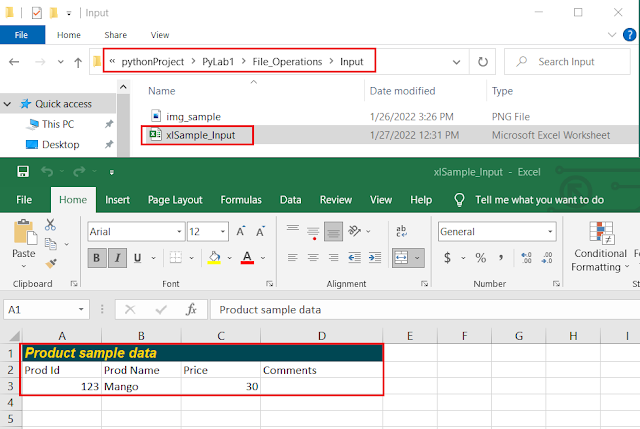
Creating a xlsx file in the given Path defined in above section:
myWB = openpyxl.Workbook()
myWB.save(xlFile)
myWB.close()

# Output:
# ------------------------------------------------------------------------------------------------------------------------ #
Opening an existing Excel file and defining Title and Columns of the Data:
myWB = openpyxl.load_workbook(xlFile)
# Assigning the active sheet to a variable (sheet object)
sht1 = myWB.active
# The first row or column number begins with 1, not 0. Cell object is created by using sheet object's cell() method.
r1c1 = sht1.cell(row=1, column=1)f
#str1 = input('Please enter the sample data title: ')

Defining and passing the Title for the data in first row of the active sheet
str1 = 'Product sample data'
sht1.merge_cells('A1:D1') # Merging the cells
sht1["A1"] = str1

# Formatting the title string
sht1["A1"].font = Font(name='Arial', size=12, bold=True, italic=True, color='ffd700')
sht1['A1'].fill = PatternFill(start_color="004753", fill_type="solid")

Defining and passing the Column names in second row of the active sheet:
a2 = sht1.cell(row=2, column=1)   # a2=sht1['A2']
b2 = sht1.cell(row=2, column=2)   # b2=sht1['B2']
c2 = sht1.cell(row=2, column=3)   # c2=sht1['C2']

a2.value = 'Prod Id'
b2.value = 'Prod Name'
c2.value = 'Price'

# Adjusting the data Columns width(Autofit)
for i in range(1, sht1.max_column+1):
    sht1.column_dimensions[get_column_letter(i)].bestFit = True
    sht1.column_dimensions[get_column_letter(i)].auto_size = True

sht1['D2'].value = 'Comments'  
# adding the comments column
sht1.column_dimensions['D'].width = 20  # static way of column sizing

Writing/ Adding first record to the data at third row of the sheet using the either of the following methods:
#Method 1:
sht1.cell(row=3, column=1).value = '123'  # a3=sht1['A3']
sht1.cell(row=3, column=2).value = 'Mango'  # b3=sht1['B3']
sht1.cell(row=3, column=3).value = 30  # c3=sht1['C3']

#Method 2:
sht1['A3'].value = 123
sht1['B3'].value = 'Mango'
sht1['C3'].value = 30

#Method 3:
a3 = sht1.cell(row=3, column=1)   # a3=sht1['A3']
b3 = sht1.cell(row=3, column=2)   # b3=sht1['B3']
c3 = sht1.cell(row=3, column=3)   # c3=sht1['C3']

a3.value = 123
b3.value = 'Mango'
c3.value = 30

myWB.save(xlFile)  # saving the excel file

# Output:

# ------------------------------------------------------------------------------------------------------------------------ #
Appending data from a tuple / list to the existing Excel sheet:
# Appending data from a tuple
ds1 = ((124, 'Apple', 45),
       (125, 'Banana', 10),
       (126, 'Orange', 35)
       )
for k in ds1:
    sht1.append(k)

# Appending data from a list
lst1 = [[127, 'Grapes', 150.45],
        [128, 'Blueberry', 275],
        [129, 'Strawberry', 300.75]]

for k in lst1:
    sht1.append(k)

# Output:
# ------------------------------------------------------------------------------------------------------------------------ #
Adding an image to an existing Excel sheet:
img_name = 'img_sample.png'
img = Image(folder_path+img_name)

# Resizing the image
img.height = 150
img.width = 150
sht1.add_image(img, "E2")

# Renaming the active sheet
sht1.title = 'myData' 
# adding a new sheet to this workbook
myWB.create_sheet("Analysis", 2)

# Printing all the sheets in this workbook
print('The available sheets in the Workbook are:\n ', myWB.sheetnames)
myWB.save(xlFile)  # saving the excel workbook
myWB.close()  # closing the excel workbook

# Output:
The available sheets in the Workbook are:
  ['myData', 'Analysis']

# ------------------------------------------------------------------------------------------------------------------------ #

Opening and reading data from an existing workbook:
wb_obj = openpyxl.load_workbook(xlFile)
sht_obj = wb_obj.active
last_col = sht_obj.max_column
last_row = sht_obj.max_row

# Print the no.of columns and rows in the data
print('There are {0} rows and {1} columns in the data.'.format(last_row, last_col))

# Result:
There are 9 rows and 4 columns in the data.

# Print all column names from the active sheet
print('The columns names of the active sheet are:')
for k in range(1, last_col + 1):
    cell_obj = sht_obj.cell(row=2, column=k)
    print(cell_obj.value)

# Result:
The columns names of the active sheet are:
Prod Id
Prod Name
Price
Comments

# Print all values from the first column of active sheet
print('The values from the first column of the dataset are:')
for k in range(1, last_row-1):
    cell_obj = sht_obj.cell(row=k+1, column=2)
    print(cell_obj.value)

# Result:
The values from the first column of the dataset are:
Prod Name
Mango
Apple
Banana
Orange
Grapes
Blueberry

# Print all values from the first row of active sheet
print('The values from the first data row of the dataset are:')
for k in range(1, last_col + 1):
    cell_obj = sht_obj.cell(row=3, column=k)
    print(cell_obj.value)

# Result:
The values from the first data row of the dataset are:
123
Mango
30
None

# Print all values from the dataset of active sheet
print('The data from the dataset of active sheet:')
for row in sht_obj.iter_rows(min_row=2, min_col=1, max_row=last_row, max_col=last_col):
    for cell in row:
        print(cell.value, end=" ")
    print()

# Result:
The data from the dataset of active sheet:
Prod Id Prod Name Price Comments 
123 Mango 30 None 
124 Apple 45 None 
125 Banana 10 None 
126 Orange 35 None 
127 Grapes 150.45 None 
128 Blueberry 275 None 
129 Strawberry 300.75 None
# ------------------------------------------------------------------------------------------------------------------------ #
Creating a Dataframe/dataset from the data of active sheet :
So far we have mainly used the openpyxl package and its modules to process the data in the Excel. Now, we will use the Pandas package with openpyxl to create the data frames. We are using the Pandas package reference name 'pd ' in the following.

data_values = [ ]   # an empty list will be used to store the data from excel
for row in sht_obj.iter_rows(min_row=2, min_col=1, max_row=last_row, max_col=last_col):
    data_values.append([cell.value for cell in row])
# Creating the dataframe from the above list of values
df1 = pd.DataFrame(data_values, columns=get_column_interval(1, last_col))
print('The dataframe created from dataset is:\n', df1)

# Result:
The dataframe created from dataset is:
          A           B       C         D
0  Prod Id   Prod Name   Price  Comments
1      123       Mango      30      None
2      124       Apple      45      None
3      125      Banana      10      None
4      126      Orange      35      None
5      127      Grapes  150.45      None
6      128   Blueberry     275      None
7      129  Strawberry  300.75      None

Notes:
As we know, in the dataframes, the row index will starts the from 0., which means, 0 refers to the first row of the dataset. 
In the following example, header=1 means, it uses the second row for the column headers.

# Creating a Sub dataset from the dataset using the  fist 3 columns 0, 1, 2 :
ds1 = pd.read_excel(xlFile, sheet_name='myData', skiprows=0, header=1, usecols=[0, 1, 2], na_values='Missing')
print('The subset of original dataset is:\n', ds1)

# Result:
The subset of original dataset is:
    Prod Id   Prod Name   Price
0      123       Mango   30.00
1      124       Apple   45.00
2      125      Banana   10.00
3      126      Orange   35.00
4      127      Grapes  150.45
5      128   Blueberry  275.00
6      129  Strawberry  300.75

# Creating a Sub dataset from the dataset by passing the required Column names:
ds2 = pd.read_excel(xlFile, sheet_name='myData', skiprows=0, header=1, usecols=['Prod Name', 'Price'], na_values='Missing')
print('The subset of original dataset is:\n', ds2)

myWB.close()  # finally, closing the workbook.

# Result:
The subset of original dataset is:
     Prod Name   Price
0       Mango   30.00
1       Apple   45.00
2      Banana   10.00
3      Orange   35.00
4      Grapes  150.45
5   Blueberry  275.00
6  Strawberry  300.75

#--------------------------------------------------------------Thanks--------------------------------------------------------------#

Featured Post from this Blog

How to compare Current Snapshot Data with Previous Snapshot in Power BI

How to Dynamically compare two Snapshots Data in Power BI Scenario: Suppose we have a sample Sales data, which is stored with Monthly Snapsh...

Popular Posts from this Blog